
How To Submit A Payment Request (Student Reimbursement)
Note: The payment request process is the same across all types of payment requests.
In this tutorial, I’ll walk you through how to specifically submit a Student Reimbursement request, step-by-step.
Click here to watch a video tutorial
STEP 1: Log in to GrantEd as either an FO or Stanford Affiliate (if you are submitting a self-reimbursement request for yourself and are not part of your VSO’s leadership team.)
STEP 2: On the dashboard, select the "Payment" tab.

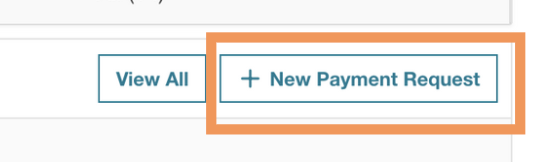
STEP 3: Click on "New Payment Request" to start your request
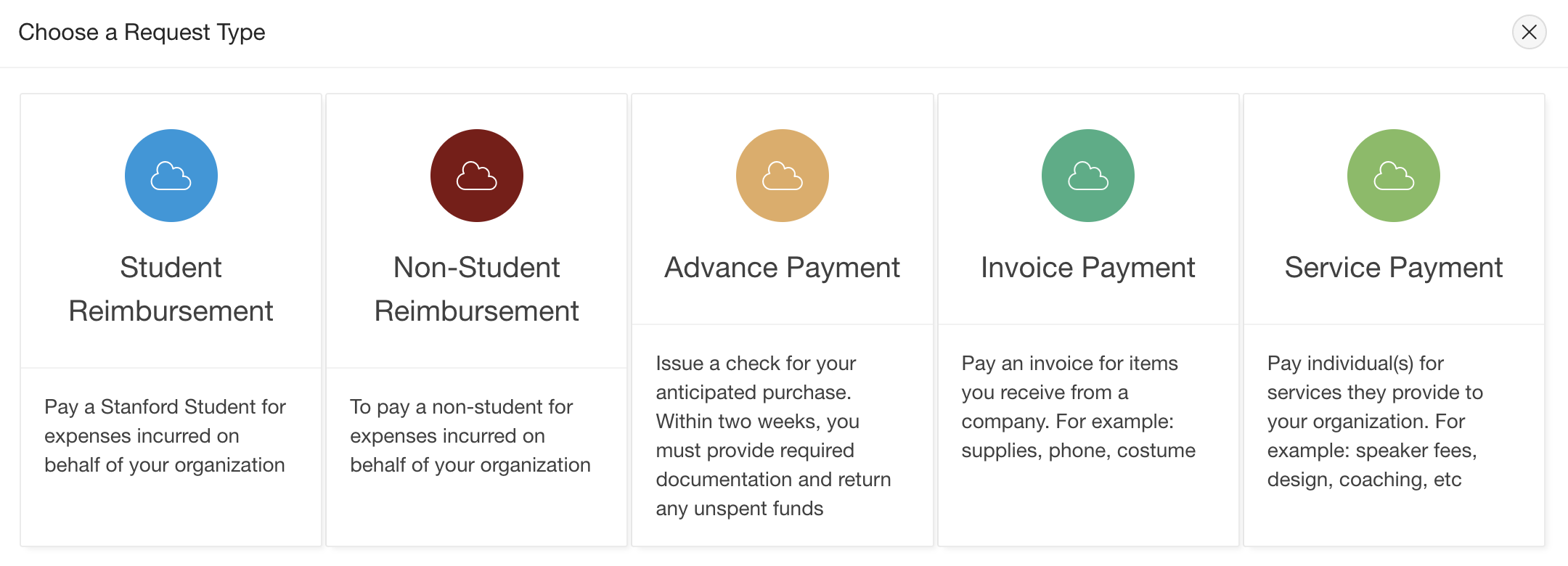
STEP 4: Select the appropriate request type. In this tutorial, we’ll demonstrate how to submit a “Student Reimbursement,” but please note that all subsequent steps are the same for every request type.
Note: Only Financial Officers (FOs) have access to select from the different request types as shown below. If you log in to GrantEd as a Stanford Affiliate, you will only be able to submit a self-reimbursement request.
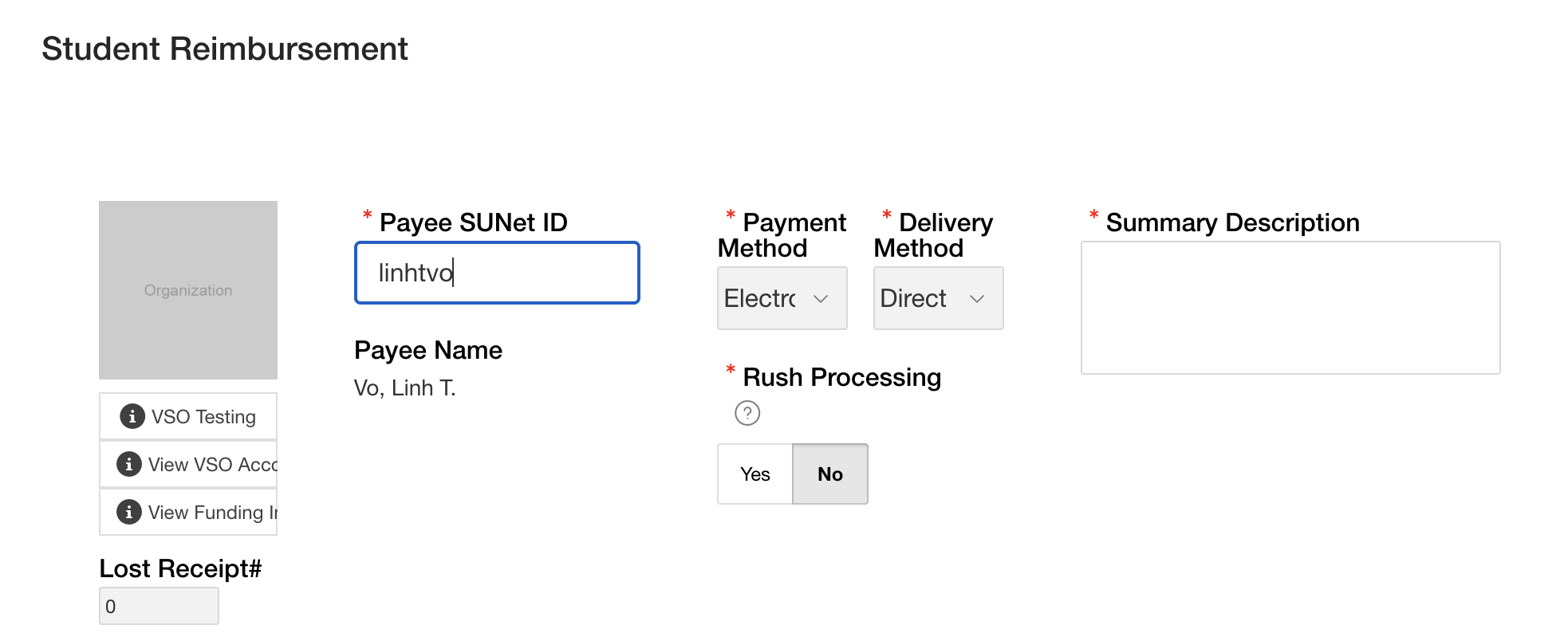
STEP 5: Fill out the following information.
SUNet ID: Enter the SUNet ID of either yourself or the person being reimbursed.
If you are submitting a self-reimbursement request as a Stanford Affiliate, your Financial Officer (FO) will need to approve the request.
If you are an FO submitting a reimbursement request, your President must approve it.
If you are a President submitting a reimbursement request, a Vice President will need to approve it.
Payment Method/Delivery Method:
If you or your payee have been set up for direct deposit, you can select "Electronic" as the payment method, and then "Direct Deposit". To learn more how to get set up, visit our page here.
If you or your payee prefer to receive a check, you can choose either “Mail” to have it sent to a specified address or “Pickup” to collect it directly from our office in Old Union.
Summary Description: Provide a detailed description of the purpose of this reimbursement and the circumstances under which the purchase was made on behalf of your VSO.
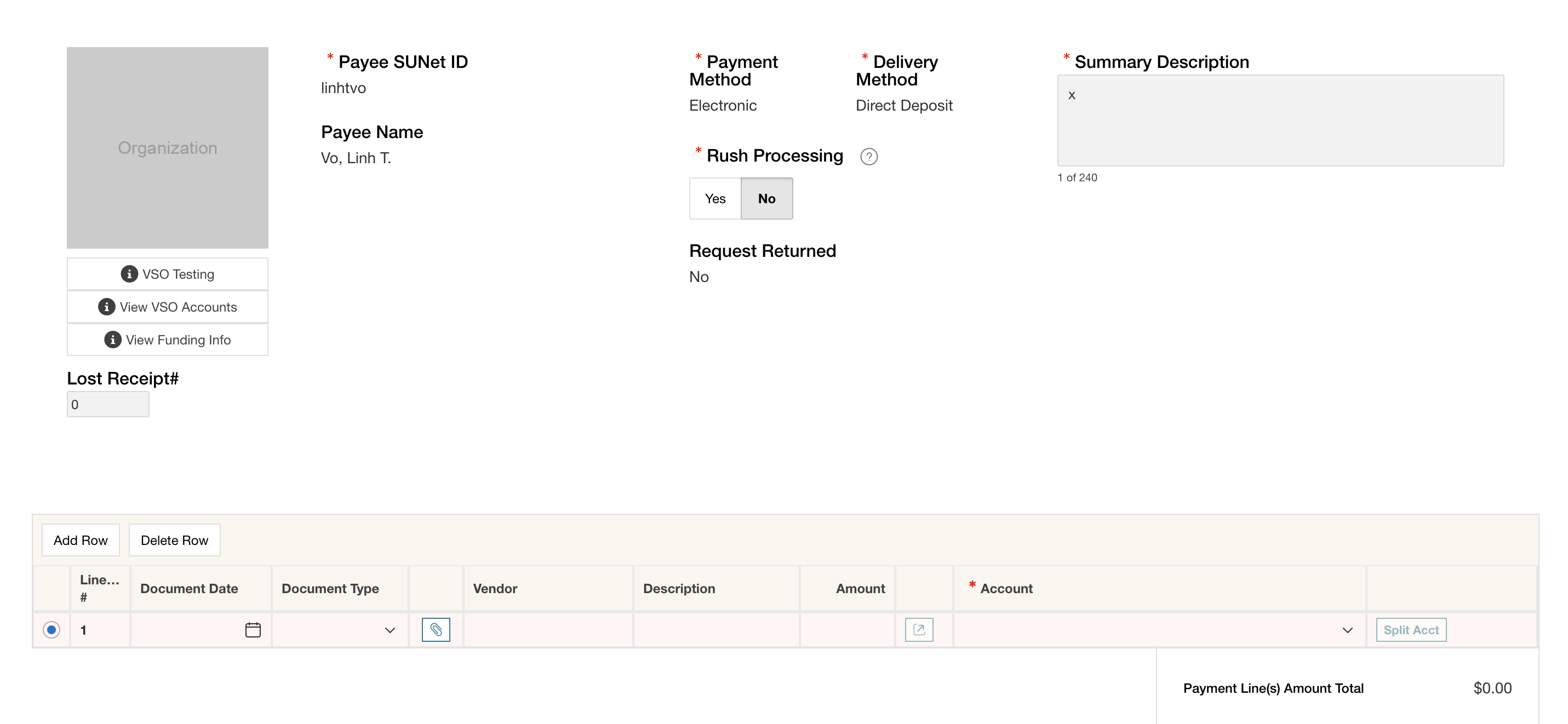
STEP 6: Fill out the following information.
Document Type:
Receipt: We require all reimbursement requests to include an itemized receipt with detailed cost of all the purchases alongside proof of payment
Lost Receipt: If you’re unable to provide an itemized receipt with your payment request, you may use the “Lost Receipt” option.
We allow up to three lost receipt submissions per year. In this case, you must upload proof of payment, such as a bank or credit card statement showing the total purchase amount and vendor name. Requests submitted without selecting “Lost Receipt” and without an itemized receipt will be rejected.
Vendor: Please write down the vendor of your purchase.
Description: Please write down a detailed description of what this payment request is for.
Amount: The amount requested must match the total shown on the receipt and cannot exceed it.
If you are intentionally requesting less than the full amount, you must clearly note “Partial Reimbursement” in the description section. Requests that do not include this note when applicable will be rejected.
Tips should not exceed 20% of the total bill. If the tip amount is greater than 20%, the request must be submitted as a partial reimbursement.
Account:Select the account from which you would like your payment request to be charged. Please ensure you have received prior approval before making any purchases, and confirm that the event or expense you are requesting reimbursement for is clearly listed under the account’s line items.
If you have not been approved prior to your payment request, your request will be rejected.
STEP 7: Submit
After submission, your payment request will either be routed to your VSO leadership for approval or sent directly to our team for processing. Processing time varies depending on the time of the quarter and the number of requests in our queue, typically ranging from a few days to up to two weeks. Please be patient as we review your request.
It is your responsibility to monitor the status of your payment request and make any required changes if it is returned with comments.
If you would like your request to be reviewed more quickly, you may select the “Rush Processing” option.
For any further questions, reach out to Banking@sse.stanford.edu